Google Ads has two faces. When you open a new account, it shows you the simplified version: four buttons, limited options, and the promise that "the platform handles everything." Switching to Google Ads Expert Mode is what separates managing your advertising spend from handing Google the keys. And Google is more than happy to take them.

TL;DR: The No-Nonsense Summary
- Expert Mode = full interface: access to all campaign types (Search, Shopping, Performance Max, Demand Gen...), bidding strategies, and audience targeting. Smart Mode only allows Smart campaigns.
- The switch is permanent: once you enable Expert Mode, you cannot go back to Smart Mode. But you can still create Smart campaigns from within it.
- It takes seconds: on existing accounts, Settings > Switch to Expert Mode. On new accounts, look for the link at the bottom of the screen before you create your first campaign.
- Google buries it on purpose: Smart Mode benefits Google, not you. Less control for you means more unchecked spending, on their terms.

If you've been searching "Google Ads Expert Mode" trying to figure out where it's hiding, that's your sign you need a hand. Reach out anytime, no commitment, I'm happy to help.
DaniWhat Is Google Ads Expert Mode?
Google Ads Expert Mode is the full interface of Google's advertising platform. It gives you access to every campaign type, bidding strategy, audience targeting option, and advanced reporting tool available. It's where any serious PPC professional actually works.
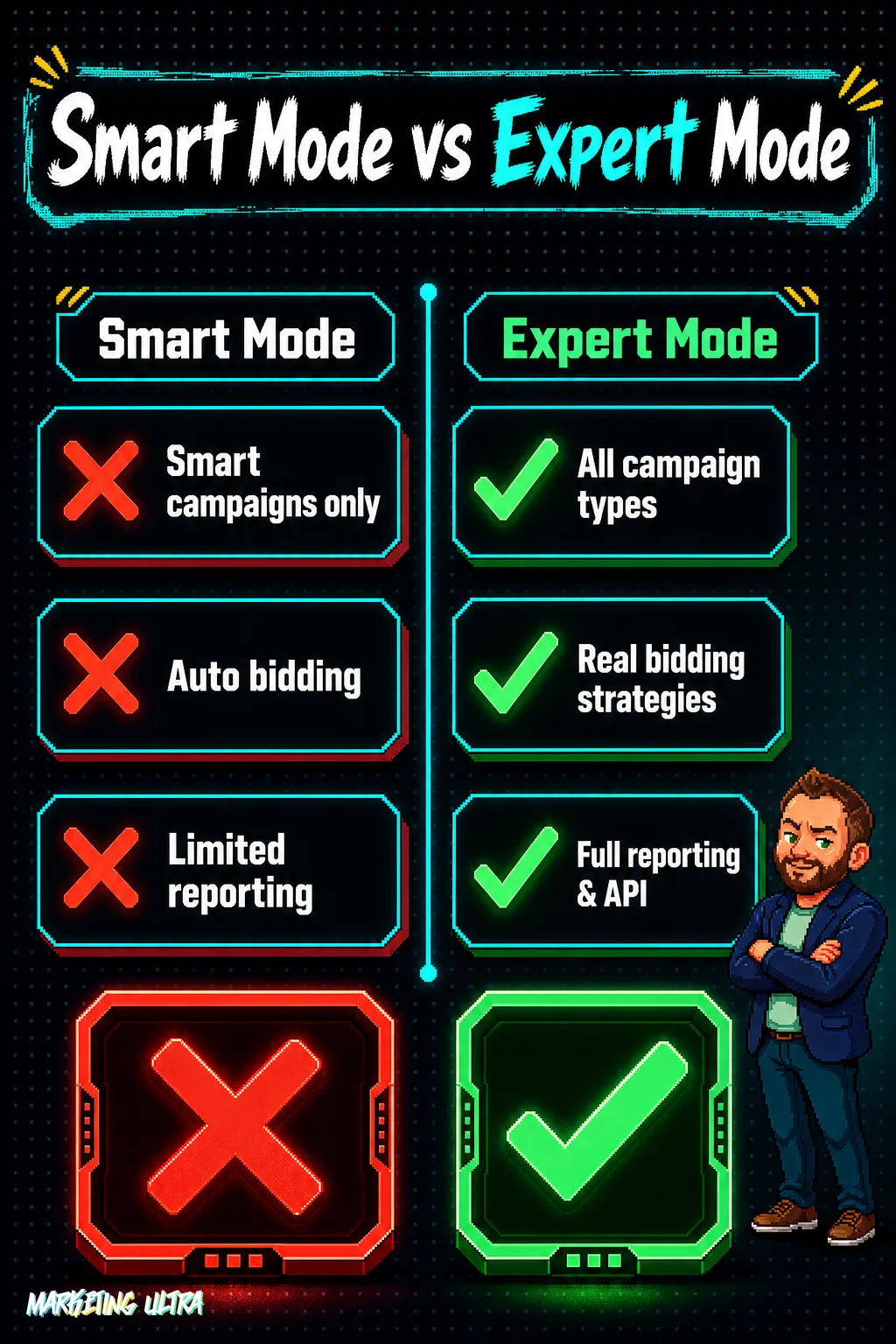
The alternative? "Smart Mode" (formerly Google Ads Express): a stripped-down version where you can only run Smart campaigns. You set a budget, write a couple of lines of ad copy, and Google manages the targeting, bidding, and placements.
Sounds convenient. Also sounds like signing a blank check.
How to Switch to Expert Mode in Google Ads
It's quick, but the path differs depending on whether you have a brand-new account or an existing one already running in Smart Mode.
New Account (During Setup)
When you create a Google Ads account, the platform nudges you toward a simplified setup flow. Before building your first campaign, look for the "Switch to Expert Mode" link at the bottom of the screen. Click it before moving on. If you skip it, your account launches in Smart Mode and you'll have to change it manually afterward.
Existing Account in Smart Mode
If you already have an active account running in Smart Mode, the switch is done from within the platform itself. Four steps:
- Log in to your Google Ads account (ads.google.com).
- Click the settings icon (the gear icon, top right).
- Select "Switch to Expert Mode."
- Confirm the change.
Heads up: the switch is permanent. Once you enable Expert Mode, there is no going back to Smart Mode. That said, you can still create Smart campaigns from within Expert Mode if you ever need them. What you lose is the simplified interface, not the underlying functionality.
What Expert Mode Actually Unlocks
The difference here goes well beyond the look of the dashboard. It comes down to having the tools, or having them hidden from you.
- Every campaign type: Search, Display, Shopping, Video (YouTube), Performance Max, Demand Gen, and App. In Smart Mode, you only get Smart campaigns.
- Real bidding strategies: manual CPC, target CPA, target ROAS, maximize conversions, maximize conversion value. Without this, Google bids however it sees fit.
- Keyword match types: exact, phrase, and broad. Negatives included. You decide which searches trigger your ads and which ones get blocked.
- Audiences: remarketing lists, custom segments, customer match. You choose who sees your ad, not the algorithm.
- Full reporting: metrics, dimensions, breakdowns by device, time of day, and location. Actual data, not a handful of decorative charts.
- Advanced conversion tracking: enhanced conversions, CRM imports, a configurable Google Tag.
- Scripts, the API, and Google Ads Editor. Large-scale account management for those who need it.
Why Does Google Default You to Smart Mode?
This is the question no tutorial ever bothers to answer. The answer is straightforward: because it benefits Google.

The less control you have, the more control Google has. And the more control Google has, the more you spend. It is the same pattern running through auto-applied recommendations, the Optimization Score that pressures you into accepting them, and every forced migration that strips away manual controls. Smart Mode is just another chapter in the same playbook.
Google knows that most accounts are managed half-heartedly, or left on autopilot entirely. Smart Mode is designed for exactly that profile: don't ask questions, don't touch anything, trust the algorithm. And the algorithm, conveniently, ALWAYS finds ways to spend more of your budget.
Is Smart Mode worthless? Not entirely. For a local business that wants basic visibility and has no capacity for professional account management, it can work as a first step on the platform. But if your monthly ad spend is above $500 or your business actually depends on real campaign performance, staying in Smart Mode is throwing money away. No asterisks.
Switching to Google Ads Expert Mode does not instantly make you an expert. But it is the bare minimum requirement to become one. Without the full toolkit, there is nothing real to optimize. You are competing with one hand tied behind your back.
If someone else is managing your account and it is still running in Smart Mode, ask yourself one question. Just one: what else are they leaving on autopilot?
Frequently Asked Questions About Google Ads Expert Mode
What happens to my active campaigns when I switch to Expert Mode?
Any Smart campaigns you have running will continue to work normally. Switching to Expert Mode does not pause or alter them: you gain access to the full interface, can edit them with a wider range of options, and can start creating new campaign types such as Search or Performance Max.
What are keyword match types in Google Ads?
Match types determine how closely a user's search query needs to match your keyword before your ad is triggered. There are three types: exact (the search matches almost literally), phrase (the search contains your keyword in order), and broad (Google interprets the intent freely). Broad match gives you more reach but less control; exact match is the opposite.