Everyone is stuffing AI into everything. Into email. Into CRMs. Into photo editors. Even into the plain text notes app on your phone, if you push it.
Obsidian is probably the most respected note-taking app among people who know what they're doing. And its AI plugin ecosystem is its most exciting feature right now. But with so many options, the real question isn't whether there are AI plugins for Obsidian, it's which ones are actually worth installing.

TL;DR: The no-fluff summary
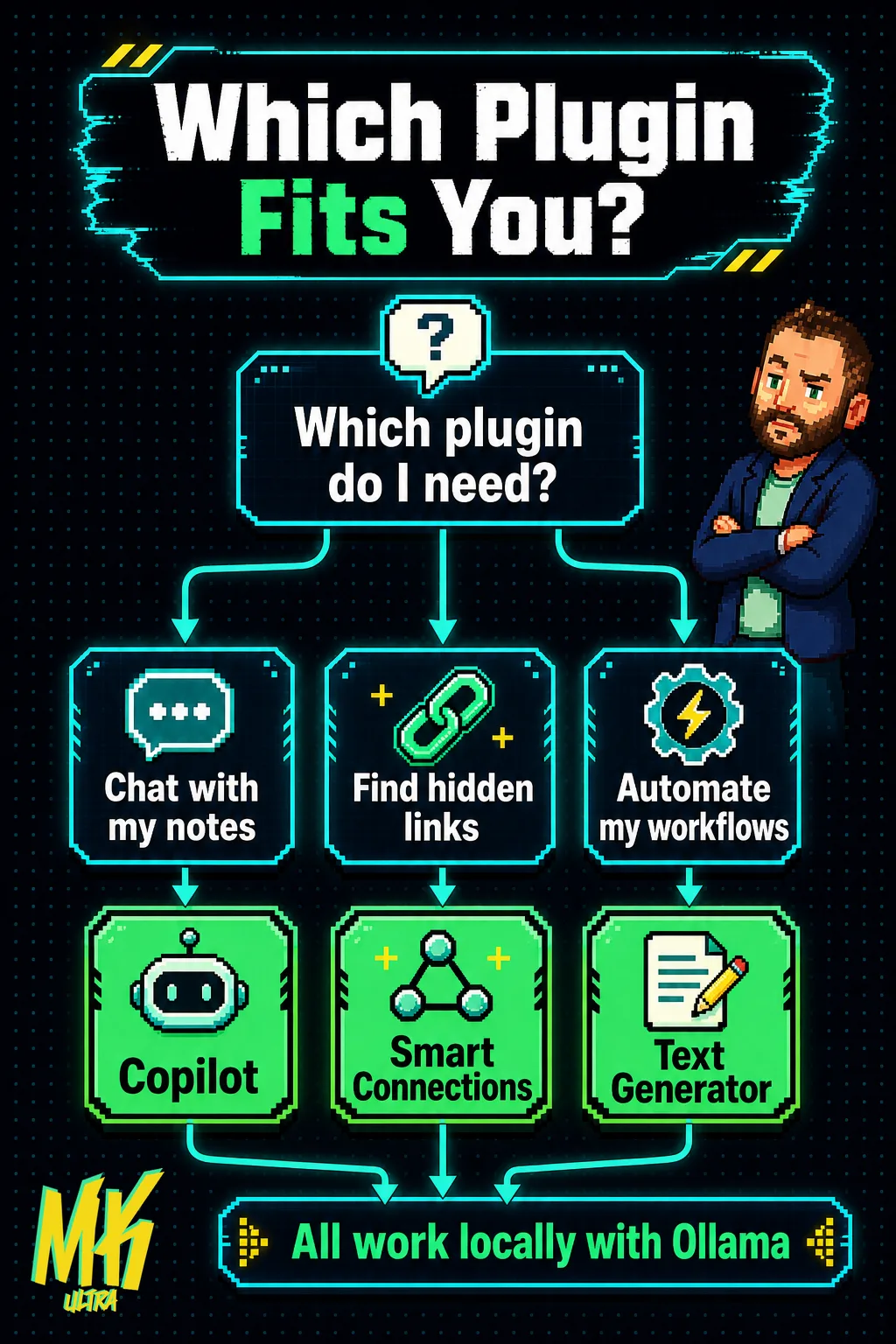
- Three plugins that matter: Copilot (chat with your vault), Smart Connections (semantic discovery), and Text Generator (template-based automation). Everything else, for now, is noise.
- All open source and free at their core: you only pay if you use paid APIs (OpenAI, Claude) or want Smart Connections premium features. With Ollama and the base version of each, the cost is zero.
- Real privacy: all three work 100% locally. Your notes never leave your machine unless you choose otherwise.
Update (August 7, 2026): Re-verified all three picks. Still alive, still maintained, still the right three: Smart Connections shipped 4.7.2 this week, Copilot remains the most popular vault assistant, and Text Generator keeps its beta cadence. Added what changed in 2026: MCP moved the goalposts.
What can an AI plugin actually do inside Obsidian?
An AI plugin for Obsidian connects a language model, GPT-5.5, Claude, Gemini, or a local one, directly to your Markdown vault. In practice: chat with your notes without leaving the app, discover semantic connections you'd never spot yourself, and generate or transform text using your notes as context.
Everything runs on local files. Nothing gets sent to any server unless you decide to configure an external API. And if you'd rather not depend on the cloud, all three plugins we're covering support open source models running entirely on your own machine.
The ecosystem has more than a dozen options. But three have earned their place through active communities, solid maintenance, and doing things that actually matter: Copilot, Smart Connections, and Text Generator. We re-checked all three in August 2026: Copilot sits at 7,500 GitHub stars with steady releases, Smart Connections shipped version 4.7.2 this very week, and Text Generator pushed a new beta days ago. No abandonware on this list.
Copilot for Obsidian: ChatGPT for your vault
Copilot is the most popular AI plugin for Obsidian, and the most straightforward. It opens a side panel, you ask it something, and it responds using your notes as context. This is called RAG (Retrieval-Augmented Generation): the model searches your vault for relevant content before answering.
Compatible with OpenAI, Anthropic Claude, Google Gemini, Azure OpenAI, and local models via Ollama. The core plugin is free and open source: install it, drop in your API key, and in two minutes you're interrogating your second brain. Since our first version of this guide, the project has grown a commercial layer, Copilot Plus, with agent features and managed models. You don't need it to get everything this article describes: the free tier still covers chat, QA mode, and vault search.
It has a chat mode for open-ended conversation and a QA mode that gives you short answers citing the source note. Plus semantic search across your entire vault. If you're only going to install ONE AI plugin for Obsidian, this is the one to start with.
The catch: Copilot is only as good as your notes. If your vault is a dumping ground of untagged screenshots and half-finished thoughts, RAG will hand you back beautifully packaged garbage. AI doesn't fix a chaotic note-taking system.
Smart Connections: the one that connects what you can't see
Smart Connections isn't primarily about chatting, though it can do that too. Its strength is discovery: it semantically analyzes ALL your notes, generates embeddings, and surfaces relationships between documents that don't share a single keyword.
You know that feeling of "I swear I wrote something related to this months ago"? Smart Connections kills it.
It supports OpenAI embeddings, local models, and has a 100% offline processing option with no external API dependency. Where it shines is the connections panel: open it next to any note and start seeing links you've been walking past for months.
The model is freemium. The base plugin is free and covers most users completely. Smart Connect (the paid tier) adds advanced features for power users.
In my experience, it's the most underrated of the three. Not the flashiest, but the one that changes how you actually think with your notes.
Text Generator: templates with a brain

Text Generator is, by a wide margin, the most technical of the three Obsidian AI plugins, and the most versatile. Instead of a chat interface, it works with templates: you define a prompt with variables, link it to your notes, and generate structured text on demand. Summaries, extractions, reformulations, translations. Whatever you need, on your terms.
Compatible with OpenAI, Claude, Gemini, local models, and virtually any API that speaks HTTP. Switching providers is a single settings change, your templates stay intact.
The learning curve is steeper than Copilot. You can't just show up and ask whatever you want. You tell it exactly what to do and how. If you have clear workflows you want to automate, this is your plugin. If you don't know what you need yet, you'll end up frustrated.
What changed in 2026: MCP moved the goalposts
When we first wrote this guide, the only way to get AI into your vault was a plugin running inside Obsidian. That is no longer true.
The Model Context Protocol (MCP) turned the connection inside out: instead of bringing a model into Obsidian, you point an external agent, Claude Desktop, Claude Code, Codex, at your vault. The agent reads and writes your Markdown files directly, with the full reasoning power of a frontier model instead of whatever fits in a plugin's context window. We run our own setup this way and documented how semantic search over an Obsidian vault works with it.
Does that kill the plugins? No. It splits the use cases. Plugins win when you live inside Obsidian: inline generation, connection discovery while writing, zero context switching. MCP wins when the vault is one source among many for an agent that also touches your code, your email, or your infrastructure. If you already pay for Claude or ChatGPT with agent capabilities, try the MCP route before installing anything. If Obsidian is your cockpit, the three plugins below are still the answer.
Which one should you install? Depends on how you think.
Open source, free at their core, compatible with multiple models. On the surface, they're equal. The difference is philosophical:
- Copilot: quick chat with your vault, zero friction. If you want answers right now, start here.
- Smart Connections: for people who think by connecting ideas. The relationships panel hooks you more than you'd expect.
- Text Generator: pure template-based automation. Fair warning: if you don't know what you want to repeat, it will frustrate you.
And if privacy matters to you, and it should, all three work with local models via Ollama. Zero data in the cloud. Zero third-party dependency.
My advice: start with Copilot. It's the most immediate, and it teaches you what you can actually ask an AI about your own notes. Add Smart Connections if the connections panel pulls you in. And leave Text Generator for when you know exactly what you want to stop doing by hand.
Copy this and paste it into Claude Code, Cursor, or your favorite coding assistant:
Install Ollama on my machine and download the llama4 model. Configure the Copilot plugin for Obsidian (https://github.com/logancyang/obsidian-copilot) to use that local model. Verify that I can chat with my vault without sending any data to an external API.
No coding knowledge required. The assistant handles installation, configuration, and testing.
Obsidian without AI plugins is still a killer tool for managing knowledge. With the right one, your vault goes from a Markdown warehouse to a system that thinks alongside you. And if someone tries to sell you an "AI second brain system" for $97 a month, point them to these three repos. All free. All open source. Sometimes the best productivity tool is the one that doesn't charge you to think.
Frequently asked questions about Obsidian AI plugins
What is Ollama and why does it appear in every plugin?
Ollama is a free, open source tool that lets you run language models (like Llama 4, Qwen, or gpt-oss) directly on your own machine, without sending data to any external server. All three plugins we've covered support it, which means you can use AI in Obsidian with complete privacy and zero API cost.
How much does it cost to use these plugins with a paid API?
The plugins themselves are free. The cost comes from whichever model API you choose: with OpenAI or Claude, typical usage of a few dozen queries a day runs around $3-10 per month. With Ollama and a local model, the cost is zero beyond your machine's electricity use.
Should I use an Obsidian AI plugin or connect my vault through MCP?
Use a plugin if you work inside Obsidian and want AI while writing: inline generation, related notes, chat in a side panel. Use MCP if you already run an agent like Claude Desktop or Claude Code and want it to read and write your vault as part of bigger workflows. They are not exclusive: plenty of setups run Smart Connections for discovery inside Obsidian and an MCP server for the heavy lifting outside it.